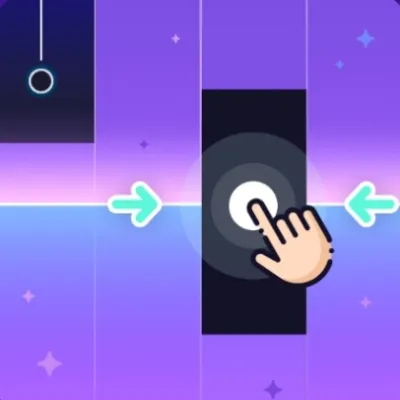
Choose a piano tile game by its controls
These three free browser music games ask you to follow tiles, but their controls and song menus differ. If you want to play immediately, open Piano Music Tiles. For a timing-line tutorial, try Piano Fire. For clearly labeled desktop lanes, try Perfect Piano 2. You can browse the wider music games collection to choose another style.
We checked the embedded browser versions and their opening screens on September 8, 2026. The notes below describe those versions, not similarly named mobile apps. Song availability and advertising prompts can change, and we did not benchmark audio latency or test every song.
Piano Music Tiles: check the song card first
The song list shows star progress, favorites, and several ways to access tracks. Some cards have a play arrow; others show a coin or diamond amount or an ad button. Start with an available play arrow rather than assuming every song is already unlocked. The cards visible during our check included Coffin Dance Meme, Monody and Canon in D.
Use the on-screen controls and follow the opening tile prompt. The playfield uses four lanes. Expand the game if the embedded view makes small targets difficult to select. Read the controls shown by this game rather than carrying over a keyboard layout from another title.
Open Piano Music Tiles and its controls guide.
Piano Fire: aim at the timing line
The opening tutorial gives a concrete instruction: tap when the line is at the middle of a tile to score Perfect. Choose GO, then use the START tile to begin. Score and star progress appear above the four lanes. Concentrate on the timing line and the next lane instead of clicking every note as soon as it appears.
The opening track in our check was labeled Seven. Start with the tutorial and repeat the opening sequence to learn the hit position. If a round ends, read the result or recovery prompt before restarting. Changing both the song and your audio output makes it harder to tell whether a timing problem comes from an unfamiliar pattern or the device.
Try Piano Fire if you want a visual timing prompt before your first round.
Perfect Piano 2: four lanes, not a full piano keyboard
Press the large play button to reach a song playfield. The opening screen showed English Lullaby, four lanes, a START tile and the desktop labels F, G, H and J from left to right. The game includes short tiles and longer hold notes. Click inside the game before using the keyboard, and keep the input held for the duration of a long tile.
Choose this game to follow a song pattern with four lane inputs. Those inputs do not form a full piano keyboard for freely choosing notes or recording a performance. Its song progression has star requirements, so check what is available before choosing a track. Hold notes require a different action from short taps: keep the lane pressed through the longer tile.
Play Perfect Piano 2 for the labeled desktop lane controls.
Before a first round
- Load the game and use its own start prompt. The website's Play Now button loads the game; it does not necessarily start a song.
- Check the song card for a play arrow, an unlock requirement or an ad option. An ad prompt does not guarantee an ad will be available.
- Read the displayed controls. Touch, mouse and keyboard support are not identical across these titles.
- Start at a comfortable volume. If the game is silent, check game mute, tab mute and the selected audio output before clearing any browser data.
- Replay a short section to learn the pattern. Avoid changing the song, device and output all at once when investigating a timing problem.
Sound, downloads and realistic expectations
A browser can block audio until you interact with the page. Our browser game sound checklist explains the first checks. Fullscreen can make the lanes easier to see; the mobile and desktop fullscreen guide covers browser limitations.
No app installation does not mean no data transfer or storage use. Game code, images and audio still download, and the browser can cache files or store progress. Clearing site data can remove that progress.
Audio delay depends on the game, browser, system and output device. Wired or wireless headphones can behave differently, but headphones are not a guaranteed fix. Compare the same passage on your available outputs and watch for visual stutter as well as late sound. These games are entertainment; this guide does not claim that playing them treats stress, improves cognition or teaches piano technique.